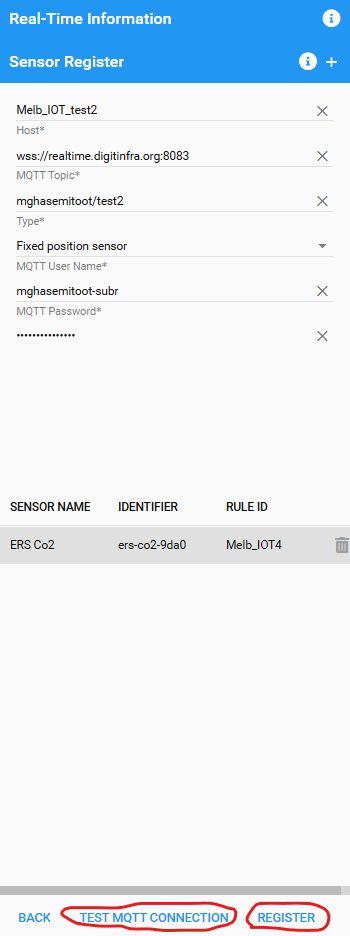
After defining the mapping rules, register your MQTT topic using your subscriber username and password. This step is crucial as it connects your sensor data stream to the Digital Twin platform as soon as it receives data from the published code on Jupyter.
MQTT Topic Registration
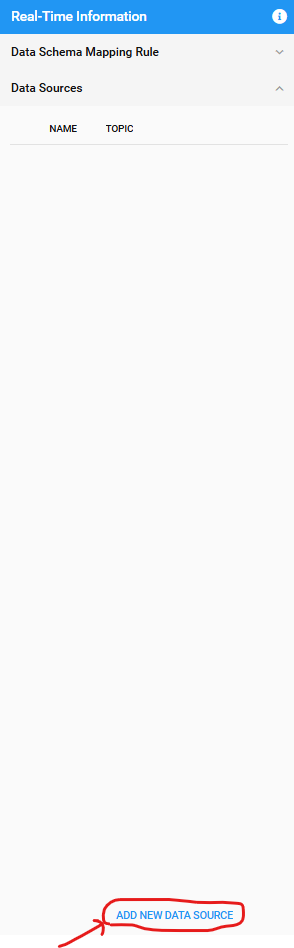
Go to the MQTT topic registration section that is displayed by “Data Sources” in the Real-Time Information Tab and click on Add new data source.
Fill in MQTT Topic Information
- Name: Provide a name for your MQTT topic. (e.g., Melb_IOT_test)
- Host: Enter the MQTT host URL. (e.g., wss://realtime.digitinfra.org:8083)
- MQTT Topic: Enter the topic name you are subscribing to. (e.g., mgha/test)
- Type: Select Fixed position sensor.
- MQTT User Name: Enter your MQTT subscriber username.
- MQTT Password: Enter your MQTT subscriber password.

Define Sensors
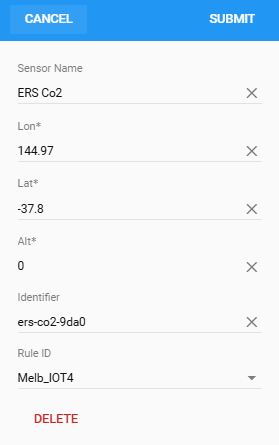
List all your fixed sensors in the Digital Twin platform. Ensure each sensor has a unique identifier and follows the defined mapping rules. You can do it by clicking on “+” button, then double-click on the created part and define the fields like the following and click on submit.
- Sensor Name: Enter the name of the sensor. (e.g., ERS CO2)
- Identifier: Enter the device ID. (e.g., ers-co2-9da0)
- Rule ID: Select the rule ID defined in the mapping rules. (e.g., Melb_IOT4)
- Latitude (Lat): Enter the latitude coordinate.
- Longitude (Lon): Enter the longitude coordinate.
- Altitude (Alt): Enter the altitude (set as 0 if it doesn’t affect the data).
Now that you have defined everything it’s time to check your MQTT connection and register your topic and complete this task.